
Optimove
Integration Guide
Before Integrating
You must get Delivyr enabled as a 3rd party Integration in your Optimove Instance. The formal way of doing this is by submitting a ticket with Optimove here: https://academy.optimove.com/hc/en-us/requests/new?ticket_form_id=360000357937
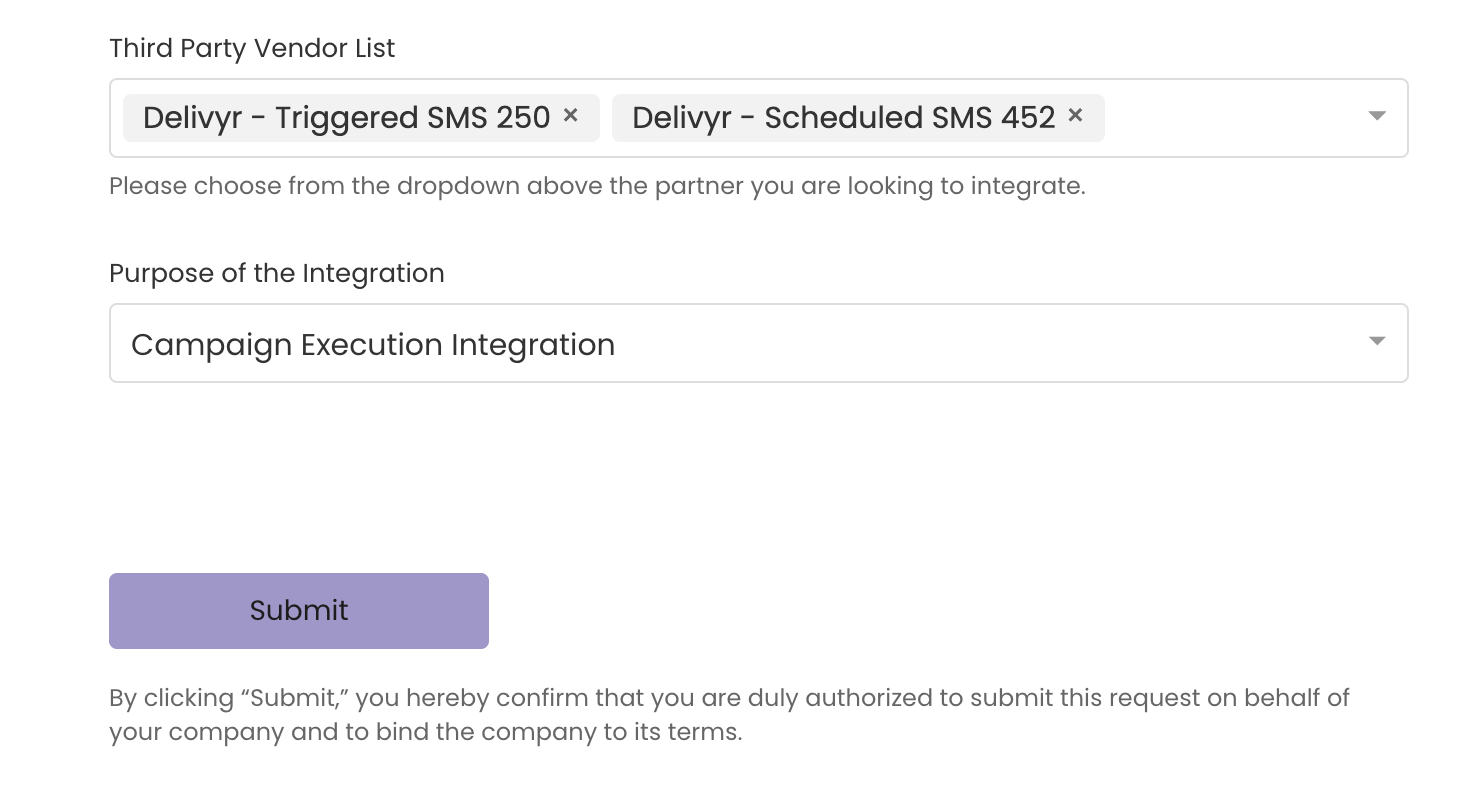
Fill in your information, and then ensure the last two fields are filled out as the following:
Third Party Vendor List:
- Delivyr - Triggered SMS 250
- Delivyr - Scheduled SMS 452
Purpose of Integration:
- Campaign Execution Integration
Getting Started
Navigate to Settings -> Integrations in your Delivyr Dashboard, look for the Optimove Integration and click "install"
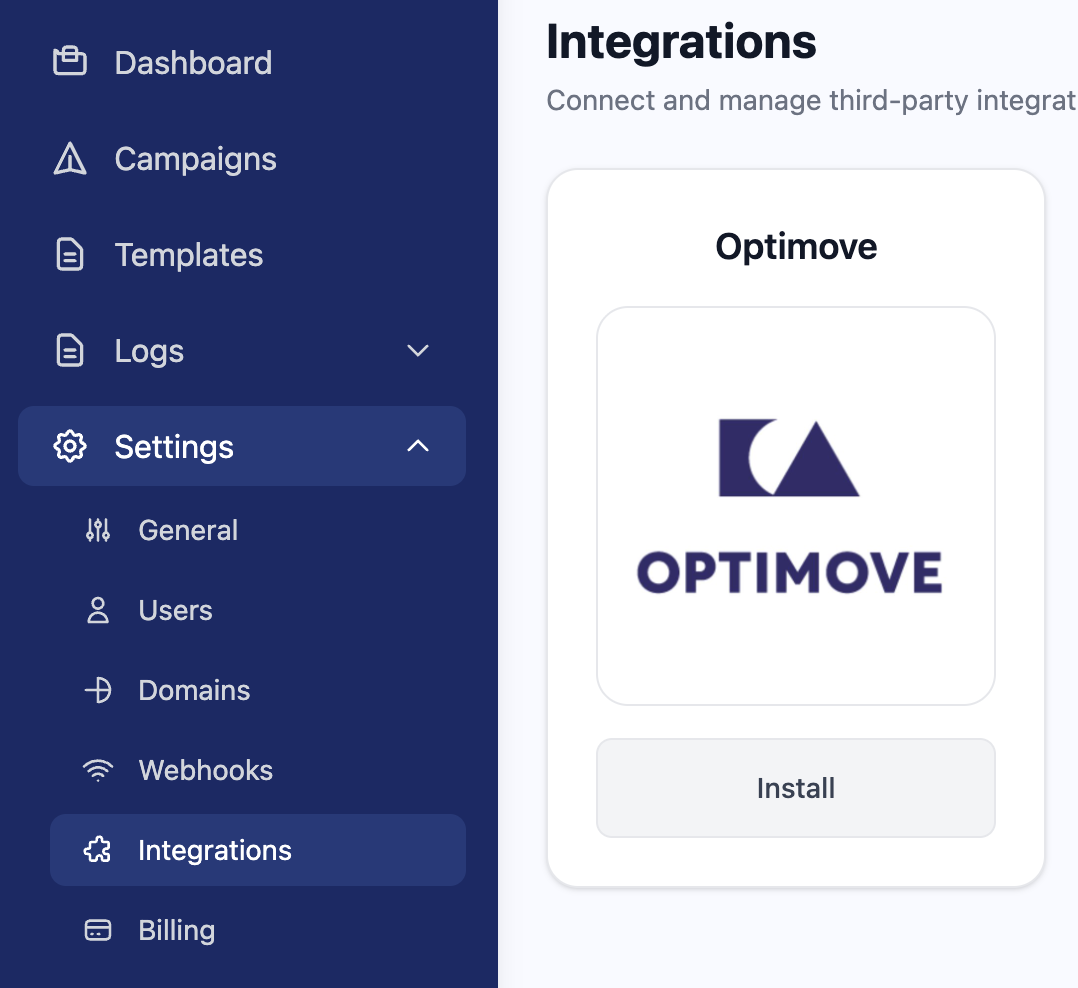
After clicking "Install", you will be presented with the following page. Follow the instructions, and click save.
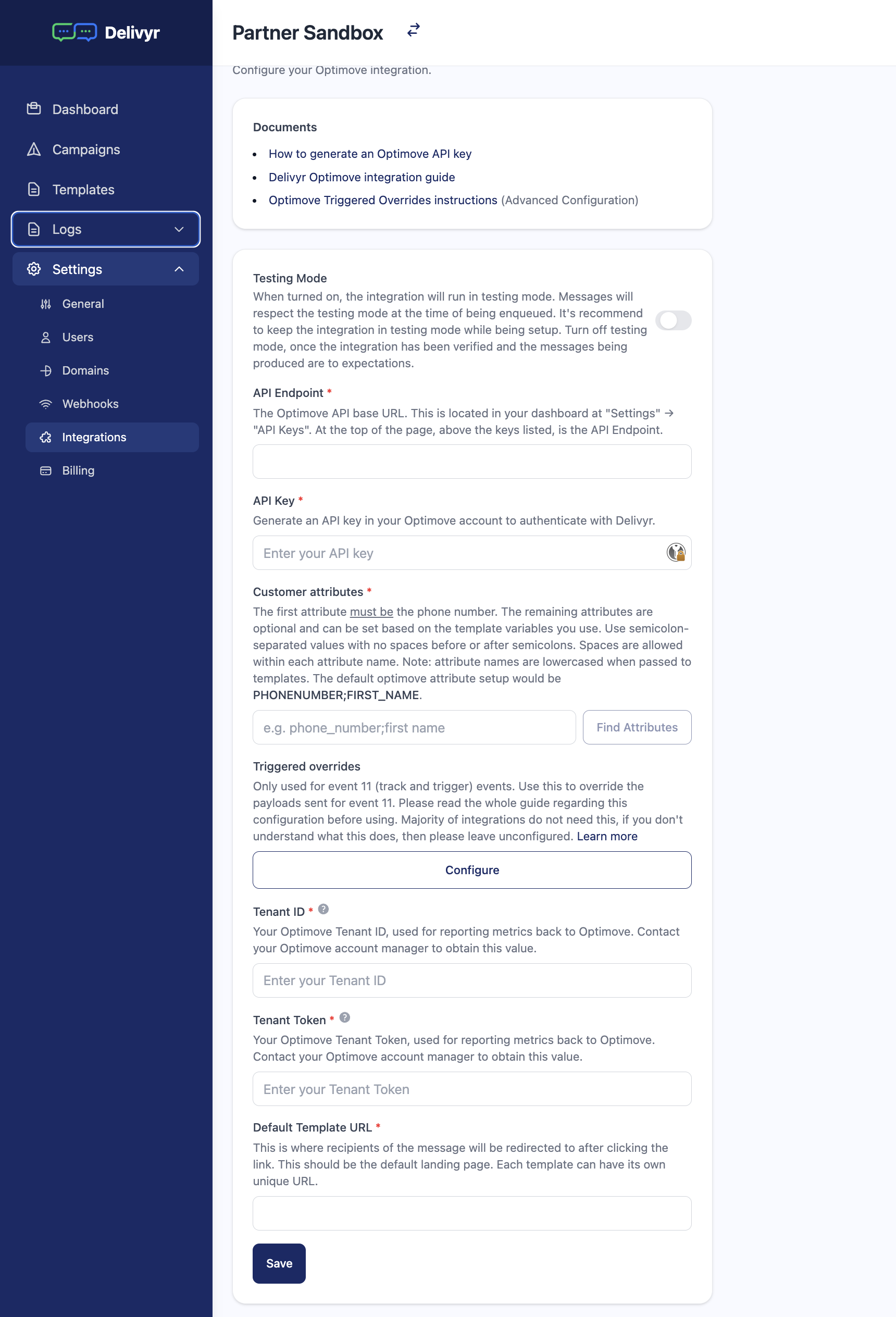
Testing Mode
By default this will be turned on. This is a great way to ensure your integration is working without accidentally sending messages to customers by mistake. In test mode, the messages will be put into the Message Log like normal, but without actually sending it to the customer phone. This is a way to sanity check, and ensure the message, and template variables are working as expected. When everything looks good, simply turn off testing mode.
API Endpoint
How to get the Optimove API Endpoint:
- Navigate to
Settings->Access Management->API Keys - Look for "API Endpoint" Above where the API Keys are listed
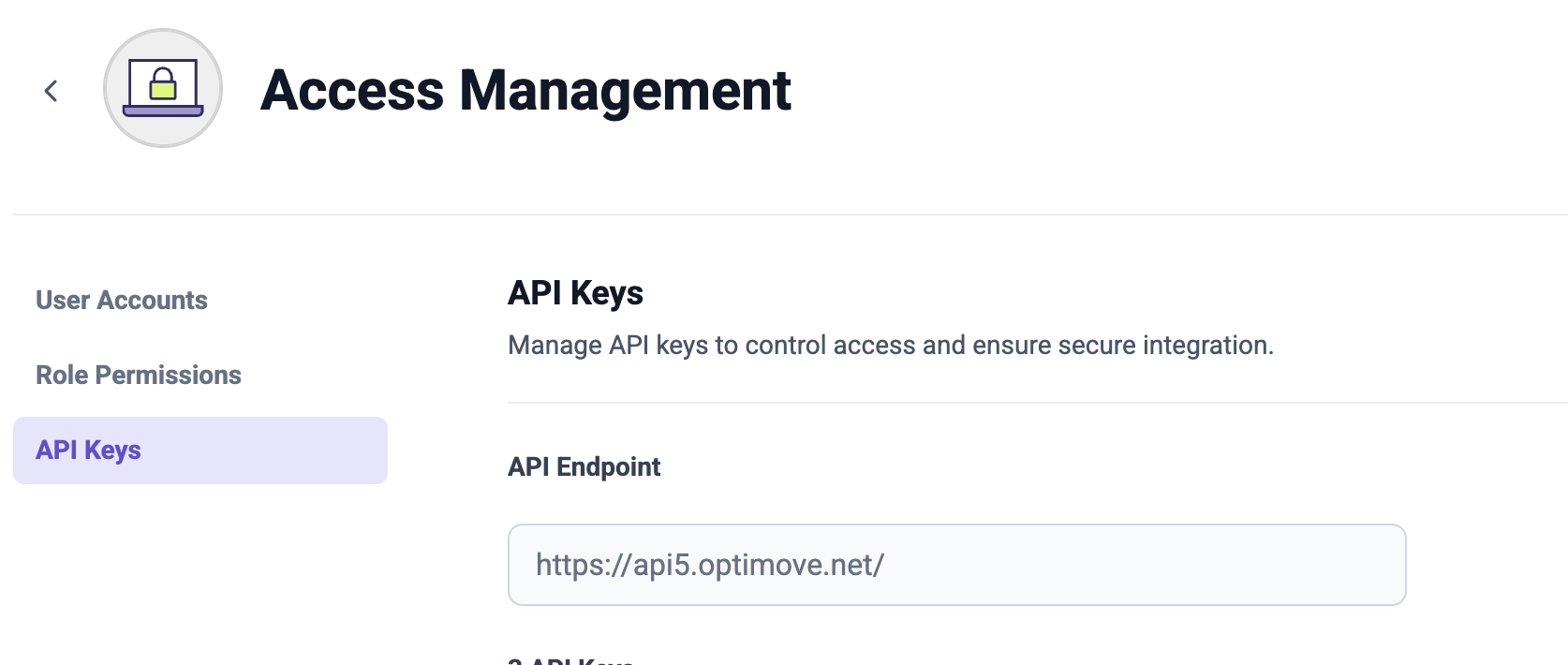
The value should be in the format of https://api + a number + .optimove.net/ . Include the trailing slash.
API Key
Do NOT use Admin or Transaction Access Types.
How to generate an Optimove API Key:
- Navigate to
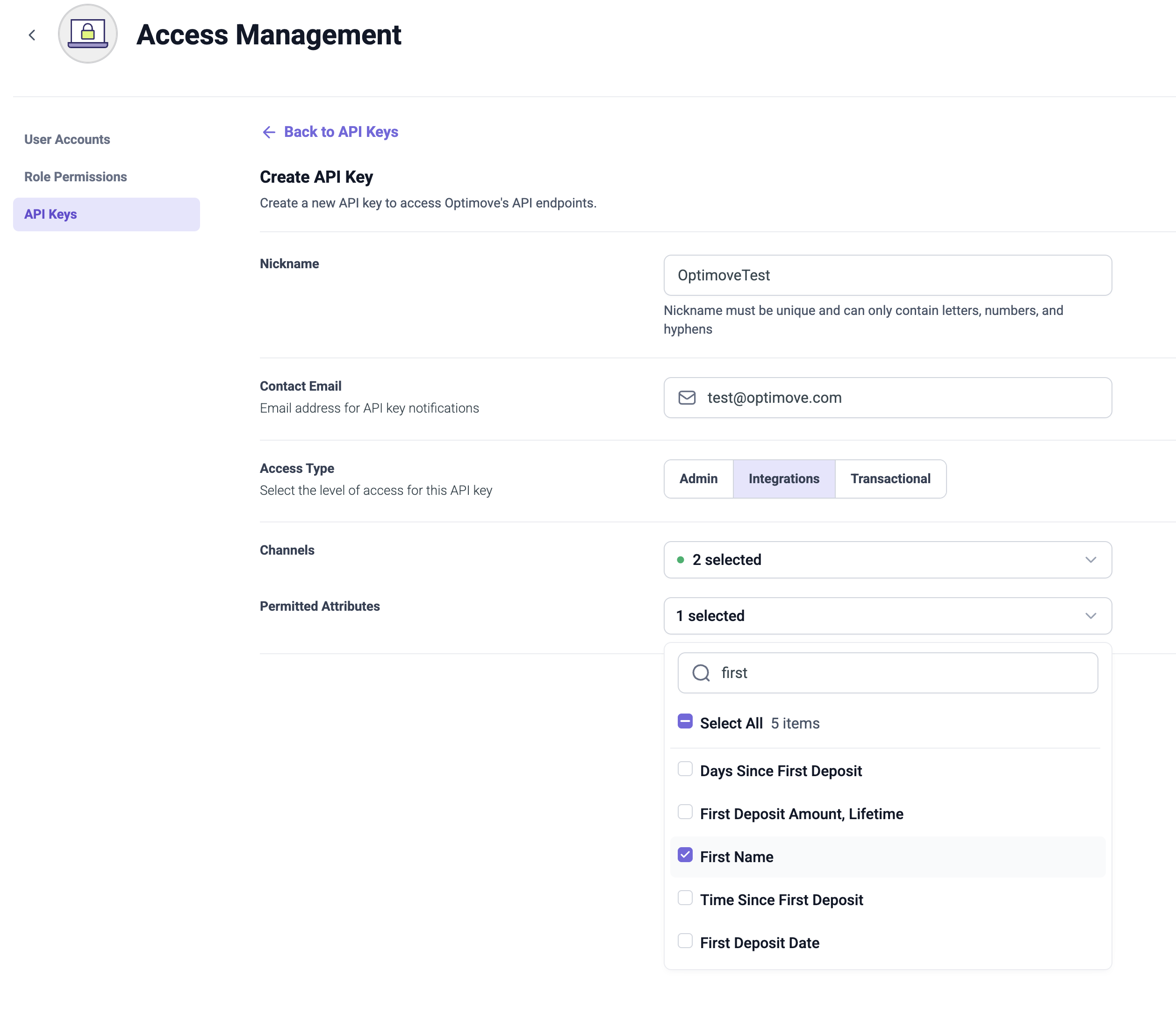
Settings->Access Management->API Keys - Create an API Key with "Integrations" Access Type.
- Choose the
Delivyr SMS Scheduledchannel and theDelivyr SMS Triggeredchannel if you are using "Track and Trigger" - Only select the Attributes you intend to use in your messages.
Customer Attributes
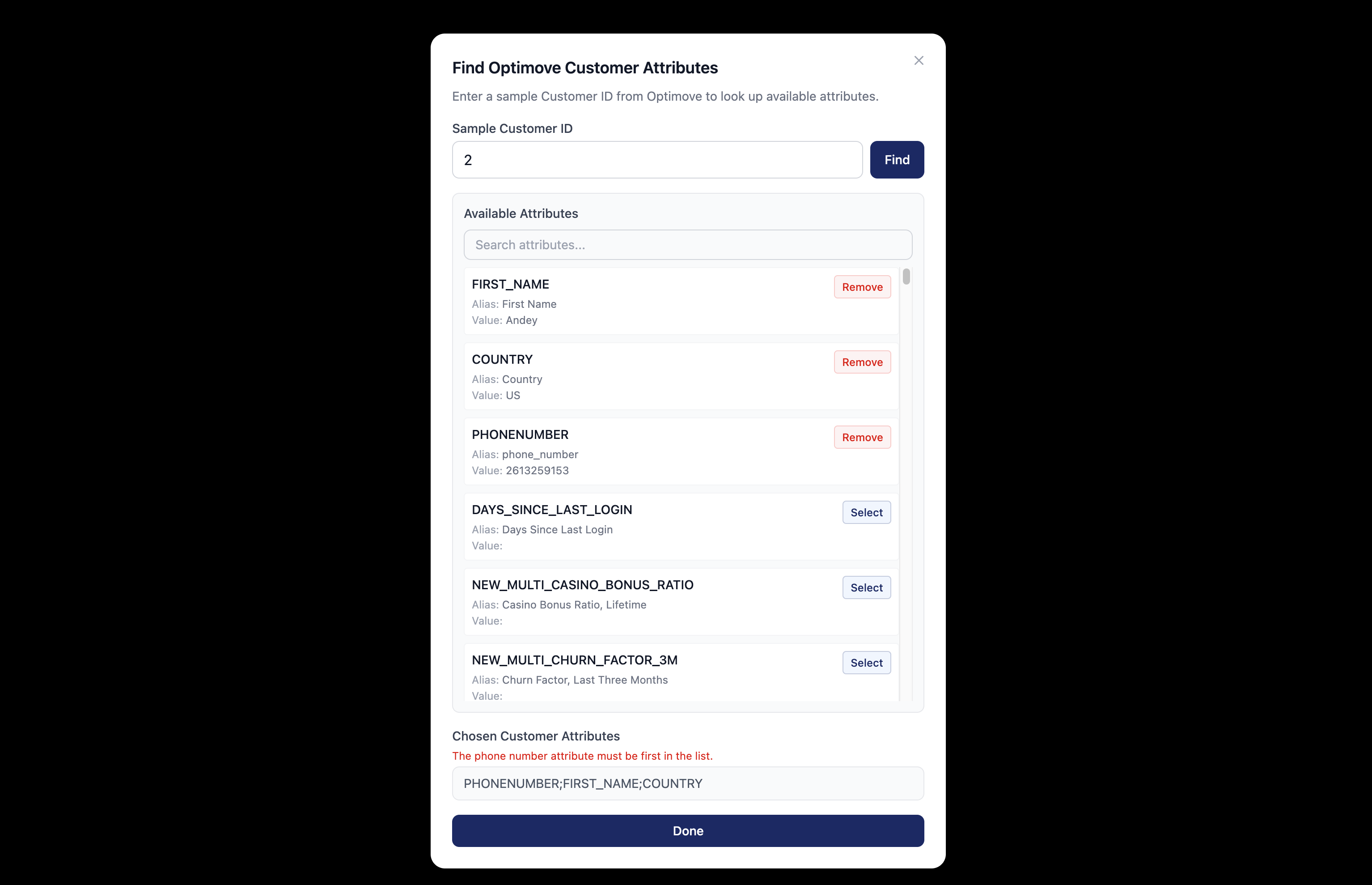
Once you have populated the API Endpoint and API Key, the "Find Attributes" Button will unlock. That button will launch a modal, asking for a sample Customer ID. This is a customer ID in your Optimove database. Choose any Customer ID, as it's just used to look up the available customer attributes to choose from.
The attributes presented in the interface are the attributes the API Key has access to. If you see more attributes than you expect, then you are using an over permissive API Key. Go back to the previous setup and ensure the API key you want to use is only scoped to the attributes you are interested in Delivyr having access to.
Remember, the "phone number" must be the first in the list.
Triggered Overrides
This is for advanced edge cases. Please discuss with your integration support team at Delivyr when using this feature. There is a dedicated guide about Triggered Overrides and how it works.
Tenant ID & Tenant Token
Must get the Tenant ID and Tenant Token from your account manager / customer support
Default URL
This URL will be installed onto all you custom templates that were created prior to enabling the integration. Each custom template you create can have it's own redirect link.
Reported Metrics
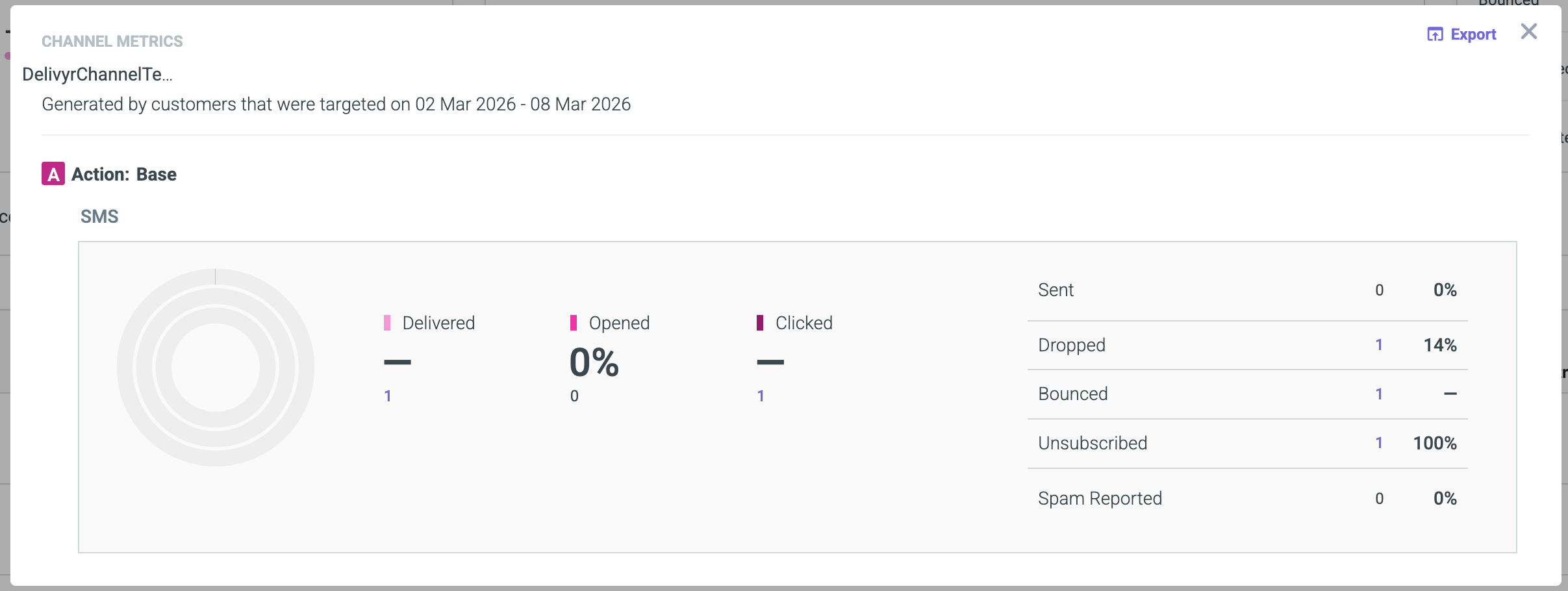
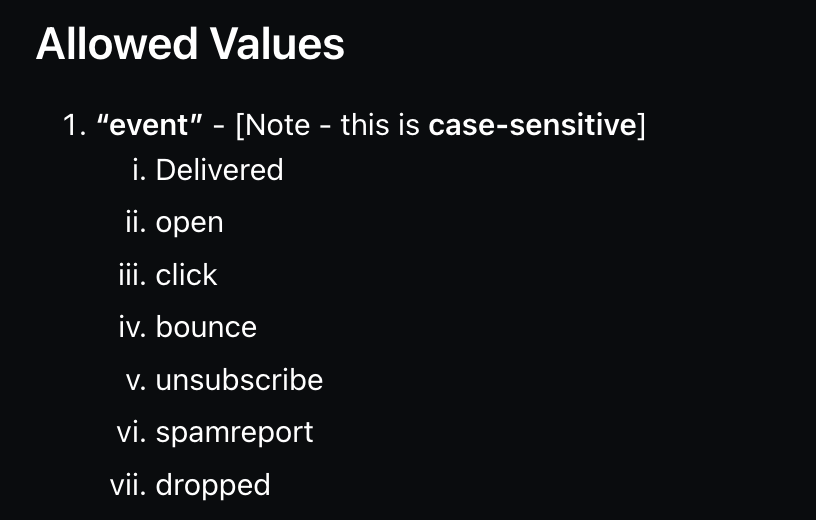
The integration will use External Vendors Campaign Engagement Metrics for reporting the following information:
| Optimove Terminology | Delivyr Terminology |
|---|---|
| Delivered | Delivered Message has been confirmed to be received. |
| Opened | Not Reported This information is not available. |
| Clicked | Click User has clicked on the link in the message. An event will be reported back for each click. |
| Sent | Not Reported This is currently a limitation in the Optimove External Vendors Campaign Engagement Metrics
"Sent" is not an allowed value. This has been confirmed by direct communication with Optimove. We have been told this is under review, and may change in the future. How to think of "Sent" in the meantime. Sent = (Targeted Customers - Dropped) |
| Dropped | Rejected Message These messages are "Rejected" by Delivyr for various of reasons including:
|
| Bounced | Undelivered Message has not been delivered to the phone. The most common reasons:
|
| Unsubscribed | Opt Out User has written back STOP and will not longer receive messages. |
| Spam Reported | Not Reported |
How to send
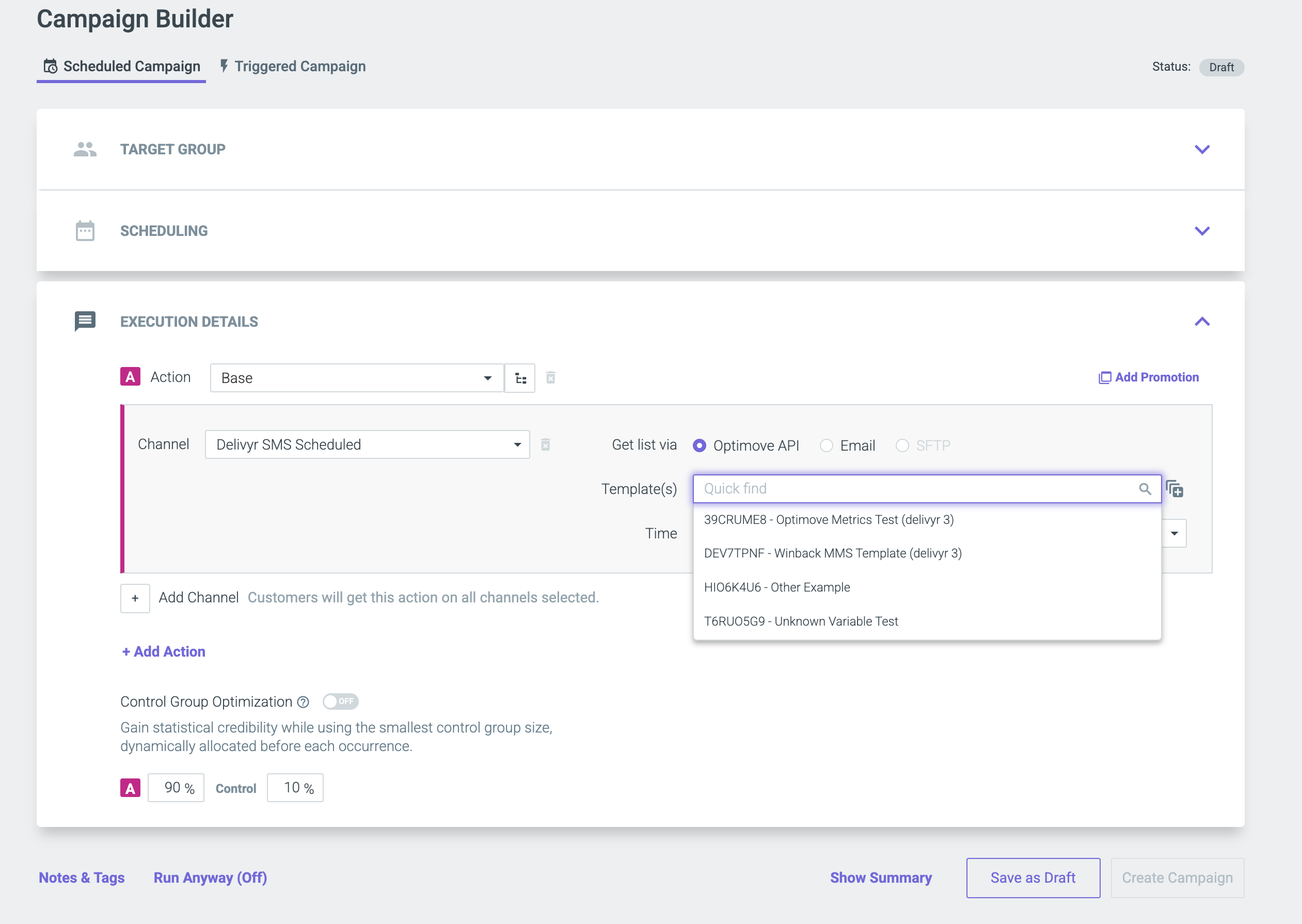
Once you have installed the integration, your templates will sync to Optimove in the Delivyr Scheduled SMS (452) channel for scheduled campaigns and Delivry Triggered SMS (250) for Triggered Campaigns. Your approved custom templates will be displayed as a template to choose from.
Updated 2 months ago